How to translate a video into another language
Subtitles, voiceover or a full dub? How to pick the right way to translate a video, then do it without ending up with a result you can't use.
6 min read
Translating a video sounds like one task. It’s really three or four, and the way you combine them decides what you end up with and what it costs. Someone searching for a way to “translate a video” might want captions, might want a translated voice, and might just want to understand a clip a colleague sent them. The right workflow differs for each.
This guide covers the options, the order of operations, and the mistakes that cost people the most time.
First, know which output you need
Before you open any tool, answer one question: what should the viewer experience at the end?
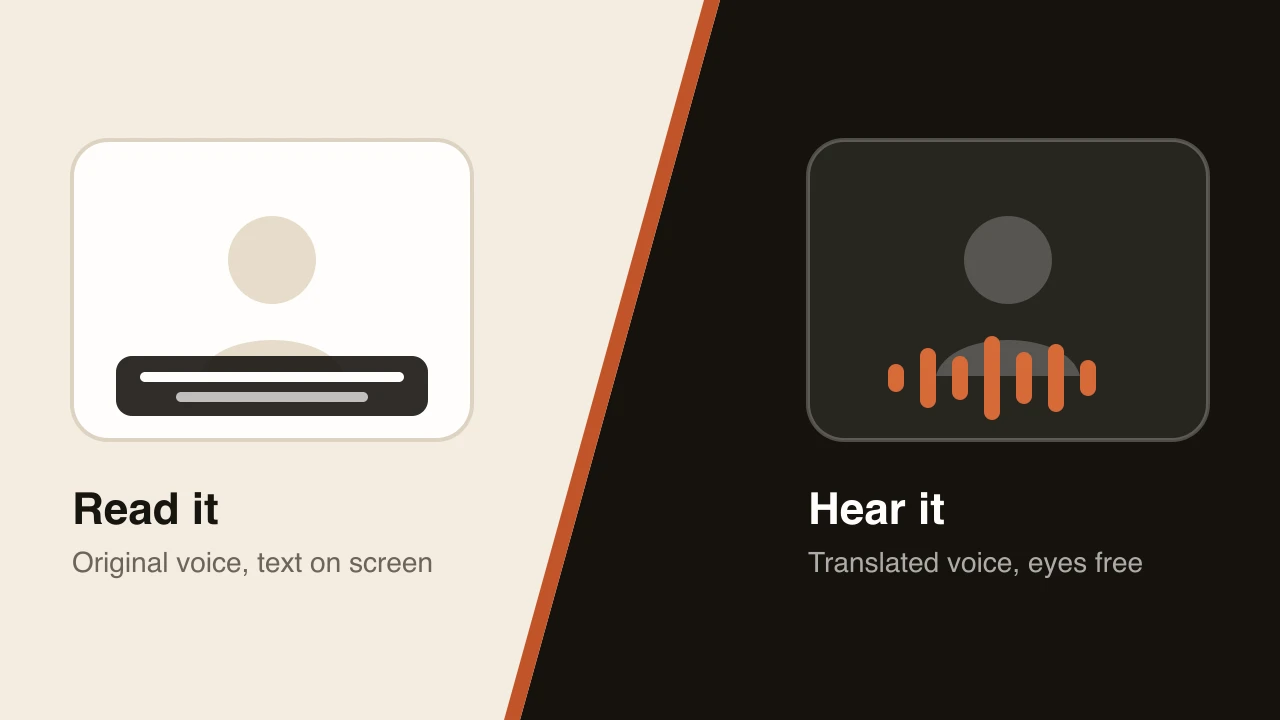
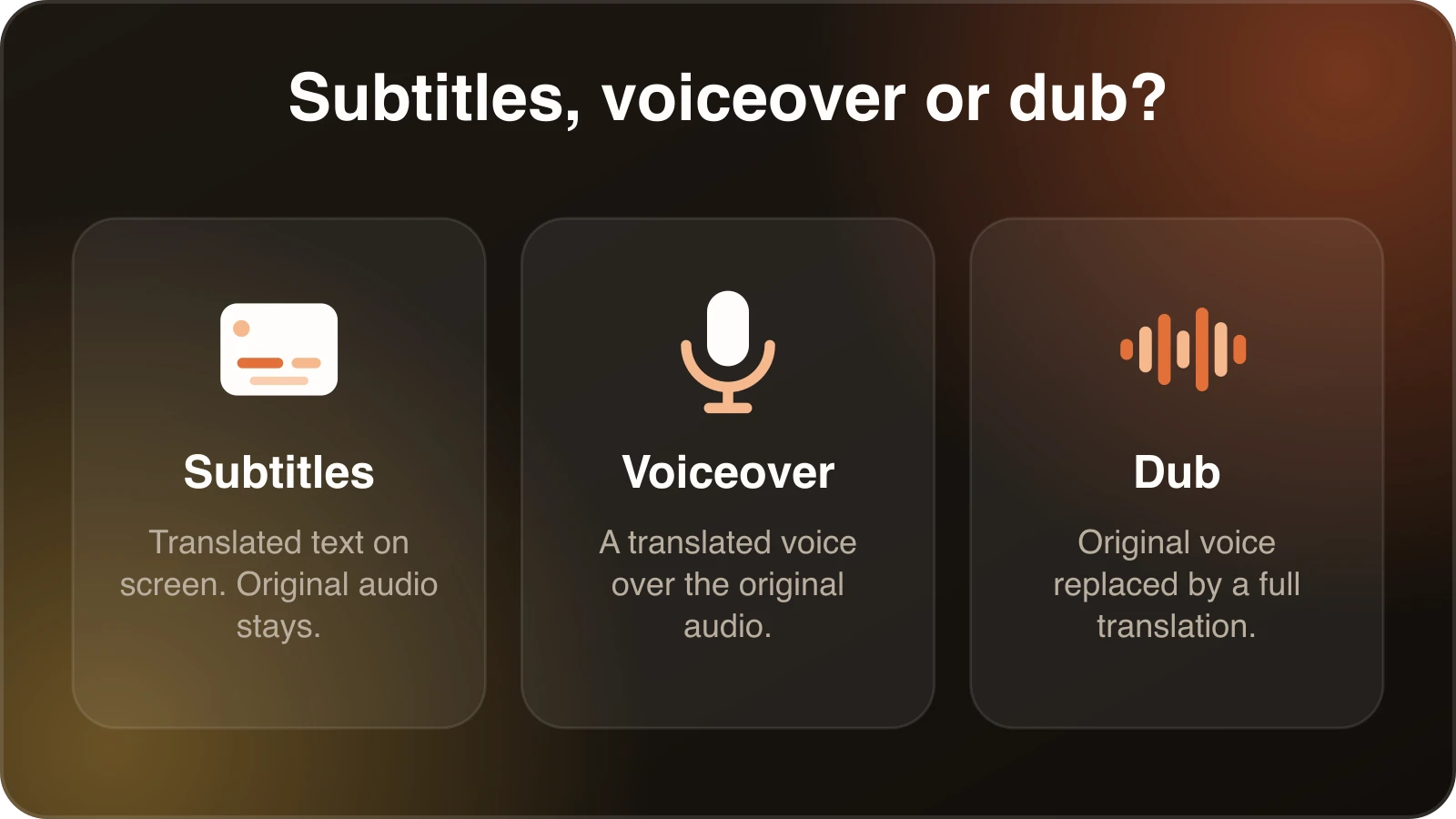
They read the translation. That’s subtitles or captions. The original audio stays, and text appears on screen. It’s the cheapest option and the easiest to check, since you can read every line. If you want to go deeper on when this is enough, we wrote a separate piece on AI dubbing versus subtitles.
They hear a translated voice, but the speaker doesn’t need to sound like themselves. That’s a voiceover. A narrator, human or synthetic, reads the translation, often with the original audio lowered underneath.
They hear the speaker in another language. That’s a dub. The translated speech is generated to match the timing of the original, ideally in a voice that resembles the speaker’s.
They just need to understand it once. Then you don’t need any of this polished. Auto-generated captions and a quick machine translation will do. Don’t over-engineer a throwaway.
Write your answer down. It will save you from buying a feature you don’t need.
The steps, in the order they actually happen
Whatever the output, the pipeline underneath is nearly always the same.
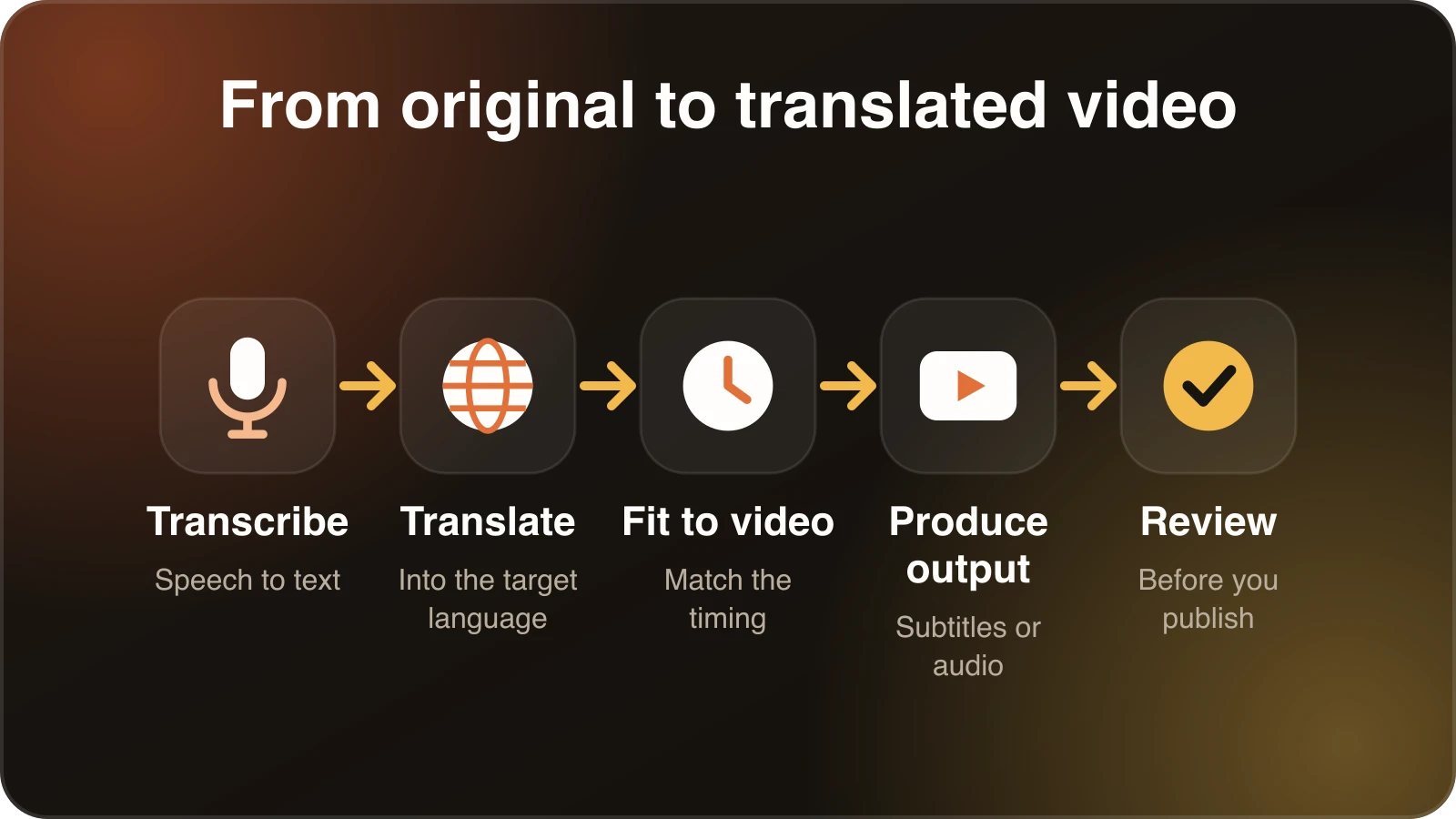
1. Transcribe
Everything depends on getting the source words right. A speech-to-text system writes out what was said, ideally with timestamps and a separation between speakers. This step is where bad audio does its damage. Mishear a word here and every later step builds on the mistake.
2. Translate
The transcript is translated. This is the step people think of as “the translation,” but it’s often the least risky part for common language pairs. What goes wrong is context. A machine translating line by line can lose track of who “he” is, or translate a product name that should have stayed as it is.
3. Fit it to the video
This is the step that separates translating a document from translating a video. Spoken translations rarely take the same time as the original. If your English sentence takes four seconds, the German version might need five. For subtitles, that’s a reading-speed problem. For a dub, it’s a pacing problem, and the system either speeds up the voice or shortens the wording.
4. Produce the output
Subtitles are exported as a file (SRT is the common format) or burned onto the picture. A dub is a new audio track mixed with the original background sound and merged into the video.
5. Review
Don’t skip it. Always have a human look at the result before it goes public. More on that below.
Choosing a method
Here is how we’d think about it in practice.
| Situation | Reasonable choice |
|---|---|
| Short internal clip, one-off | Auto captions plus machine translation |
| Social video, mostly watched muted | Burned-in subtitles |
| Tutorials and courses | Dub, with subtitles as an option |
| Interviews and podcasts | Dub, or subtitles if speaker voice matters less than accuracy |
| Legal, medical or regulated content | Human-reviewed translation, whatever method you use |
If you choose a dub, a tool like Dubtitle handles transcription, translation and voice generation in one pass, and the AI dubbing page shows the options. You upload a file or paste a link, pick from 84 languages, and a first version is typically ready in 2 to 10 minutes.
Prepare the video before you translate it
A few minutes here saves a lot of fixing later.
- Use the cleanest audio you have. If you recorded a separate microphone track, use that instead of the exported video’s mixed audio.
- Keep on-screen text in mind. Slides, lower thirds and UI screenshots that contain words won’t be translated by an audio pipeline. Plan to swap those, or add subtitles for anything that matters.
- Collect your terms. Product names, brand names, acronyms and jargon. Decide which should be translated, which should stay, and write the translation for the ones that change.
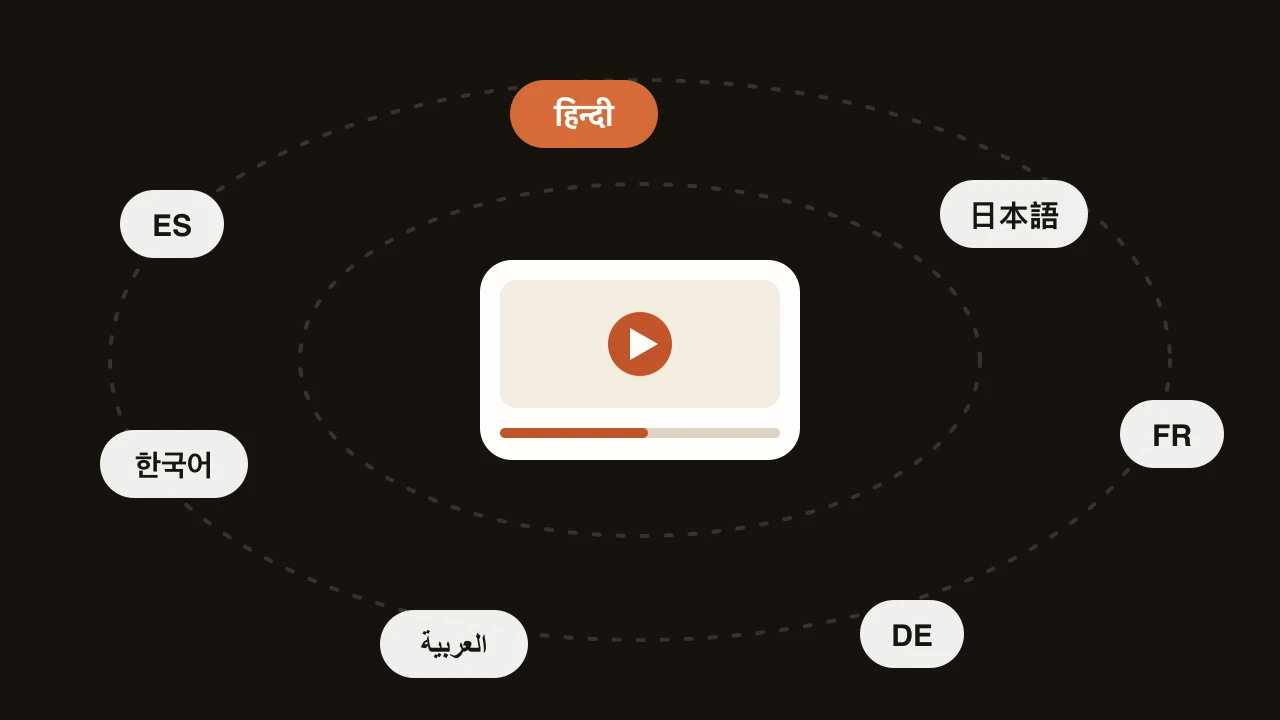
- Pick the language deliberately. “Spanish” is not one market. Spain, Mexico and Argentina differ in vocabulary and in how formal speech sounds. The same goes for Portuguese in Brazil and Portugal, and for French in France and Canada.
Review the translation properly
The most common mistake in video translation is trusting the first output. Fast machine output is usually good. It’s not always right, and the errors are rarely the ones you’d predict.
What to check:
Meaning, not just words. Read each translated line and ask whether it says what the original meant. Idioms and humour are the usual casualties.
Names and terms. Search the transcript for every product and person name. If one was translated when it shouldn’t have been, or spelled two ways, fix it.
Numbers and units. Dates, prices, measurements. An American “03/04” is a different date to a British reader.
Tone. Is the translated version more formal or more casual than the original? Both can feel off.
Timing. If you’re doing a dub, listen for lines that sound rushed. That usually means the translation is longer than the original and needs tightening.
If you don’t speak the target language, ask a native speaker to review the transcript, not the final video. It’s quicker to read than to watch, and the corrections can be applied by editing the text and regenerating only those lines. In Studio, that’s what you do: edit the line, regenerate that segment, and everything else stays as it was.
What to do about on-screen text and thumbnails
The audio is the easy part. If your video includes slides, captions baked into the picture, or a title card, it’s worth deciding early whether to re-render those. For a screen-recorded tutorial in which the UI is in English, many viewers are fine seeing English menus while hearing their own language, especially if the product itself is English. For marketing videos, translated visuals matter more.
Mistakes we see most often
Translating before the source is final. If you edit the English after dubbing, you either redo the dub or live with a mismatch. Lock the cut first.
Choosing the language by size of the market rather than your audience. Look at where your current viewers and customers are, then add languages in that order.
Skipping the glossary. Anything you mention more than a few times, a translation glossary will keep consistent.
Publishing without listening to the whole thing. One bad minute in the middle can undo the first ten good ones.
A simple way to start
Pick a single video that already performs well, one language that matches a market you care about, and translate it end to end. Review it, publish it, and watch what happens. That’s more useful than any amount of planning. You can try Dubtitle free with a short clip to see how the process feels before you commit to anything.
Frequently asked questions
How do I translate a video to English?
Transcribe the speech, translate the transcript into English, then choose your output: English subtitles, an English voiceover or a full English dub. AI tools can do all three steps from one upload.
Can AI translate a video automatically?
Yes. AI tools transcribe, translate and can generate a dubbed voice track in minutes. Accuracy depends on audio quality and language pair, so review the translation before publishing.
What is the difference between subtitles, voiceover and dubbing?
Subtitles add translated text, voiceover adds a translated voice over the original, and a dub replaces the original voice entirely with a translated track.
Can I translate a video for free?
Free tools and trials exist, but usually limit length or add watermarks. Dubtitle offers a 7-day free trial with 5 minutes of dubbing.
How do I translate a YouTube video?
Import the video link or upload the file, choose the language and review the translation. YouTube also supports translated titles, descriptions and subtitle files.