
How to create an SRT file
Three ways to create an SRT file (by hand, from a transcript, or by export), the exact format to follow, and how to check it before you upload.
6 min read
An SRT file is a plain text file, so making one takes no special software. The harder part is getting the timing and line length right so the subtitles are comfortable to read. This guide shows the exact format, three ways to produce a file, and how to check it before you upload.
If you are new to the format, what an SRT file is explains the basics first.
The SRT format
Each subtitle is one block with four parts:
1
00:00:01,000 --> 00:00:03,500
Welcome to the channel.

2
00:00:04,000 --> 00:00:07,200
Today we are looking at how subtitles work.- A counter. Start at 1 and count up in order.
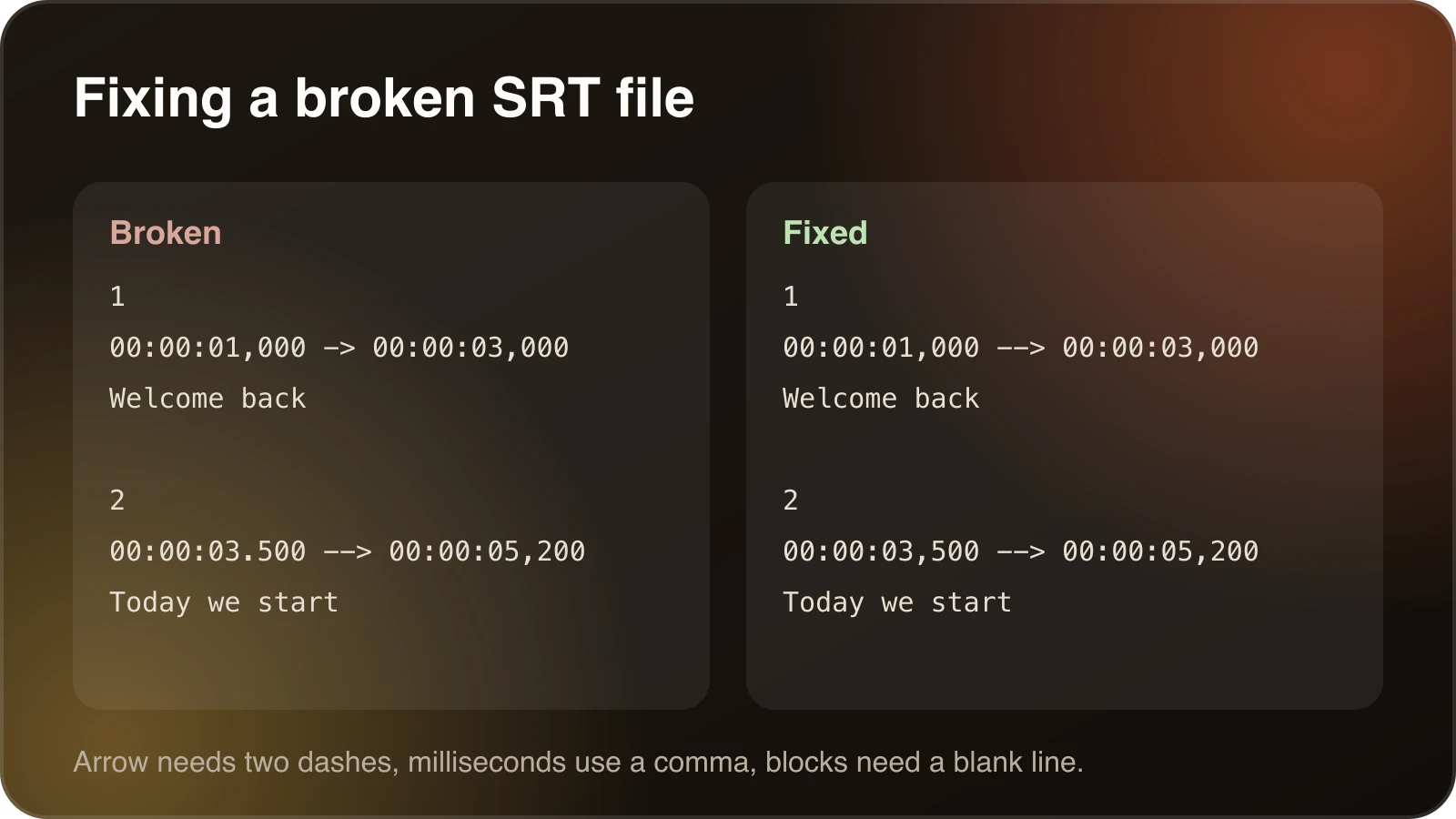
- A time range. Start and end, written as hours:minutes:seconds,milliseconds with an arrow between them. The separator before the milliseconds is a comma.
- The text. One or two short lines.
- A blank line. It marks the end of the block. A missing blank line is a common reason a file fails.
Way 1: write it by hand
Open a plain text editor, type the blocks as above and save the file with a .srt extension in UTF-8 encoding. This is fine for a short clip or a handful of lines. For anything longer, the timing work gets slow, and one of the next two methods is better.
Use a plain text editor, not a word processor. A word processor can add formatting or change the quote characters, and some players reject the file.
Way 2: generate it from the audio
Many transcription and captioning tools listen to the audio and produce subtitles with timing already attached, then let you export an SRT file. This is the fastest route for a spoken video. Treat the output as a first draft. Check names, jargon and punctuation, and fix lines that are split in awkward places.
Way 3: export or download it
Most video editors and subtitle editors can export captions as SRT. Platforms that already generated captions for your video, such as YouTube, usually let you download the file so you can fix it and reuse it elsewhere.
What makes subtitles easy to read
Good timing matters as much as correct text. These are common guidelines:
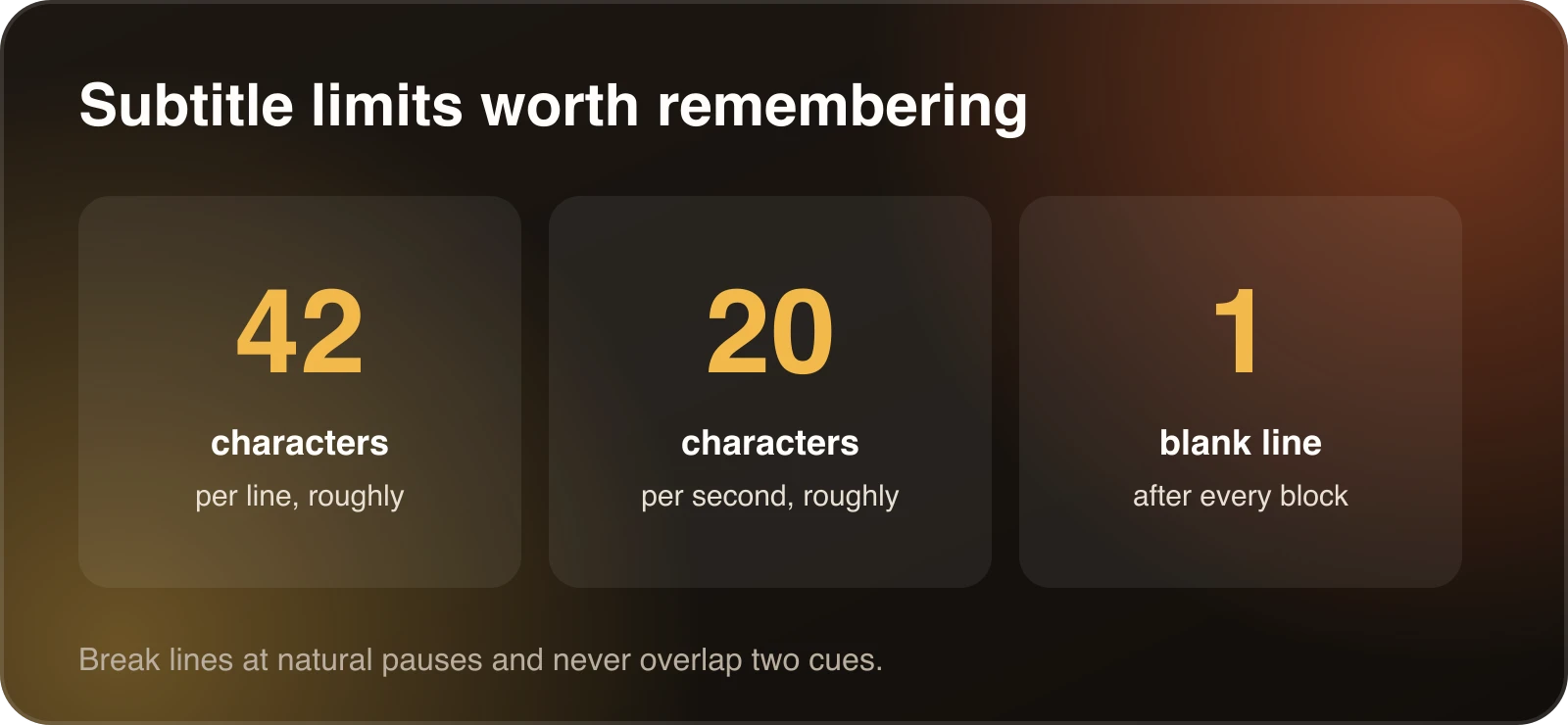
- Keep lines short. Lines longer than about 42 characters tend to wrap badly or run off small screens.
- Watch reading speed. Subtitles that show more than about 20 characters per second are hard to read in time. Shorten the text or lengthen the time on screen.
- Do not overlap cues. Two subtitles on screen at once confuse viewers and break some players.
- Split at natural breaks. Break lines at the end of a phrase, not in the middle of one.
Check the file before you upload
Open the file in a video player next to the video and watch a few minutes. Then run it through the SRT converter, which flags overlapping cues, empty or backwards cues, long lines and fast reading speed. It runs in your browser, so your file is not uploaded anywhere.
If your platform wants WebVTT instead, the same tool converts between the two. The difference is covered in SRT vs VTT.
A longer example
Here is a short file with four cues, written the way a viewer would want to read it.
1
00:00:00,500 --> 00:00:02,800
Welcome back to the channel.

2
00:00:03,000 --> 00:00:06,000
Today I will show you how to
set up your first project.

3
00:00:06,300 --> 00:00:08,200
It only takes five minutes.

4
00:00:08,500 --> 00:00:11,000
Let's start with the settings page.
Notice a few habits. Each cue lasts between about two and four seconds. Long sentences split across two lines at a natural break. There is a short gap between cues so the text does not flash. The numbers run in order with no gaps.
Timing in practice
If you write subtitles by hand, play the video and note the time when each phrase starts. Most players show time in minutes and seconds, so add the milliseconds yourself. A good rule is to show a cue as the speaker begins the phrase and keep it up for about a second after they finish, as long as the next cue does not start sooner.
For a one hour video this is a lot of work, which is why generating the file from the audio and then editing it is usually faster than writing from scratch.
Choosing an encoding and file name
Save the file as UTF-8. It supports accented letters and non-Latin scripts, and almost every player expects it. Give the file a clear name that includes the language, such as tutorial.en.srt. Some platforms use the language code in the name to decide which language the file belongs to.
SRT, VTT and other formats
SRT is the most widely supported subtitle format. WebVTT looks similar but uses a period before the milliseconds and starts with a WEBVTT header. Some tools also use SBV or ASS. If a platform rejects your file, check which format it wants and convert. The what is an SRT file guide compares the formats.
Common problems
- Subtitles show up early or late. Shift every cue by the same amount instead of retiming each one. The converter has a shift option for this.
- Garbled characters. Re-save the file as UTF-8 and load it again.
- The file will not load. Check that every block has a blank line after it and that the timestamps use a comma, not a period.
When subtitles are not the best option
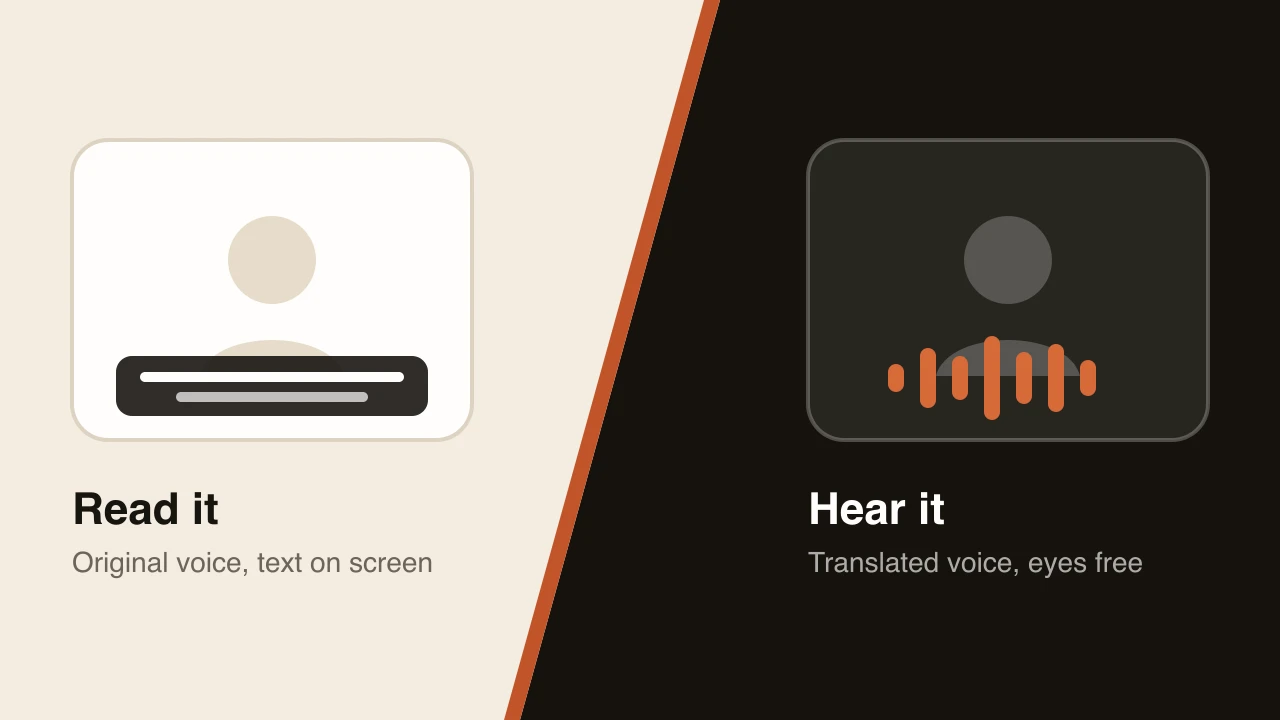
Subtitles ask viewers to read. For tutorials, demos and courses, where the picture is the point, a translated voice track often works better. Our guide on AI dubbing vs. subtitles helps you choose, and how to translate a video into another language covers both routes.
A short checklist
- Start numbering at 1 and count up with no gaps.
- Use a comma before the milliseconds and
-->between the times. - Put a blank line after every block.
- Keep lines under about 42 characters and cues under about 20 characters per second.
- Make sure no two cues overlap.
- Save as UTF-8 with the
.srtextension. - Test it in a player next to the video.
If you work through that list, your file will load almost everywhere.
Next steps
Once you have an SRT file you can translate it for other audiences. How to translate an SRT file shows how to do that without breaking the timing. If you would rather have a spoken track than text, how to translate a video into another language compares subtitles and dubs.
Frequently asked questions
How do I create an SRT file?
Write it in a plain text editor using the SRT layout (a number, a time range, the subtitle text and a blank line for each entry), or export one from a transcription tool or video editor. Save it as UTF-8 with the .srt extension.
What program do I use to make an SRT file?
Any plain text editor works, such as Notepad or TextEdit in plain-text mode. Most video editors and subtitle tools can also export SRT files, and platforms like YouTube let you download captions.
What does an SRT file look like?
Each entry has a counter, a time range written as hours:minutes:seconds,milliseconds --> hours:minutes:seconds,milliseconds, one or two lines of text, and a blank line. The comma before the milliseconds is part of the format.
Can I make an SRT file from a video automatically?
Yes. Many transcription and captioning tools generate subtitles from the audio and export them as SRT. Check the result for mistakes and timing before you publish.
How do I check that my SRT file is valid?
Load it in a video player alongside the video, or paste it into the free SRT converter, which flags overlapping cues, empty cues, long lines and reading speed problems.
Table of contents (14)
- The SRT format
- Way 1: write it by hand
- Way 2: generate it from the audio
- Way 3: export or download it
- What makes subtitles easy to read
- Check the file before you upload
- A longer example
- Timing in practice
- Choosing an encoding and file name
- SRT, VTT and other formats
- Common problems
- When subtitles are not the best option
- A short checklist
- Next steps